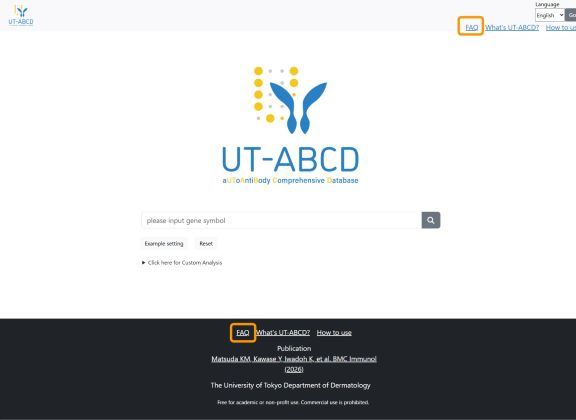
1. What you can do with UT-ABCD
UT-ABCD offers two search options: a default search that displays box plots for eight diseases and controls by entering the antigen name (GeneSymbol), and an advanced search that allows setting detailed conditions such as disease, gender, and age.
1.1. Search Methods
-
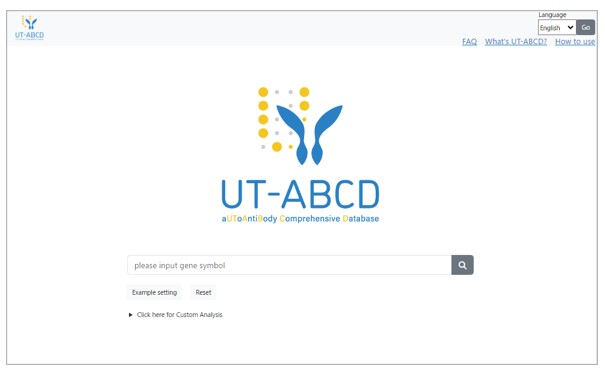
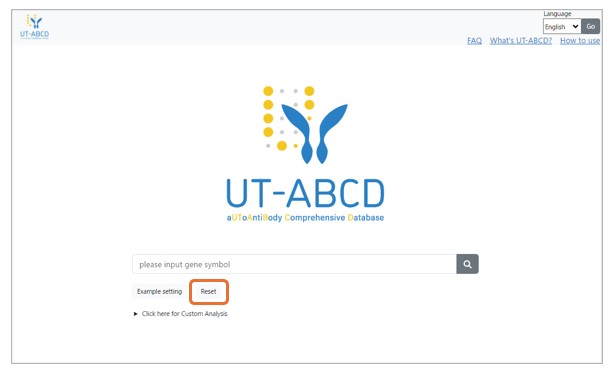
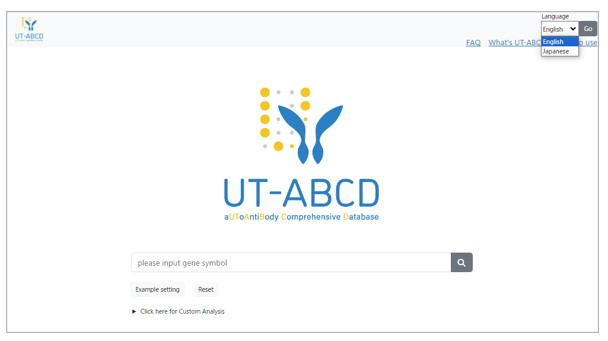
Default Search 1. Enter the gene symbol.
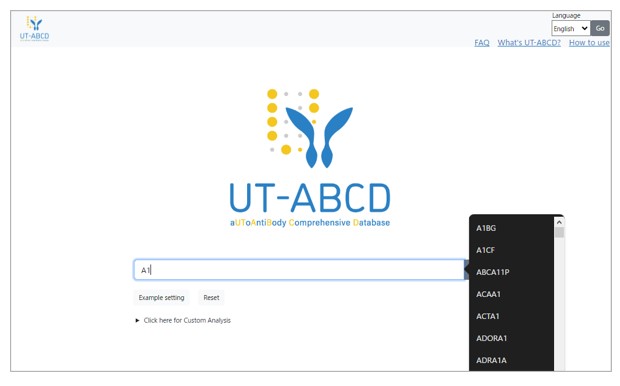
2. Suggested GeneSymbols registered in the database will be displayed as candidates when characters are input into the text box.
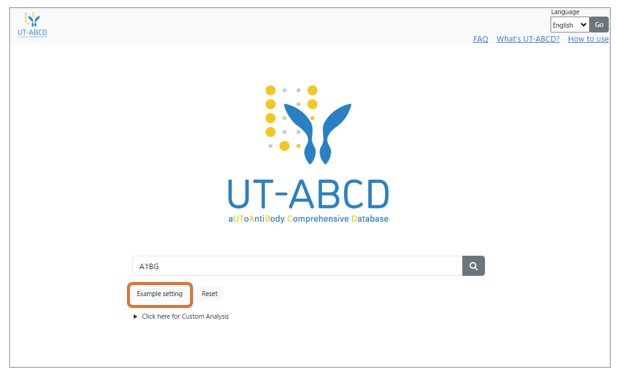
3. Option: Click the 'Example setting' button to enter example GeneSymbols.
4. Click the 'Reset' button to clear the text box and return to the initial state.
-
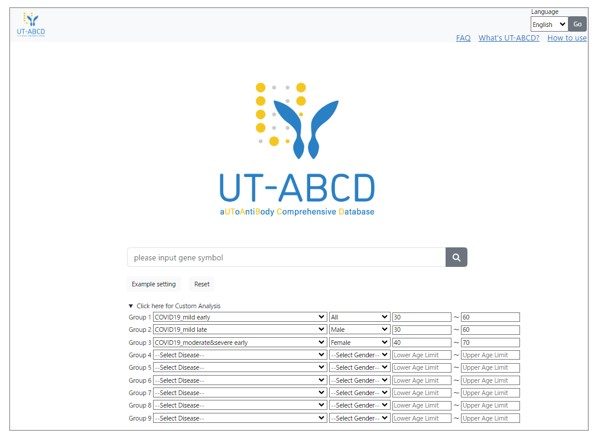
Advanced Search 1. Click 'Click here for Custom Analysis' to specify conditions.
2. Set disease, gender, and age (lower and upper limits) for each group from Group 1 to Group 9. Click on the respective fields to display and select options.
3. Enter age in half-width digits. Set the lower and upper age limits to specify the conditions.
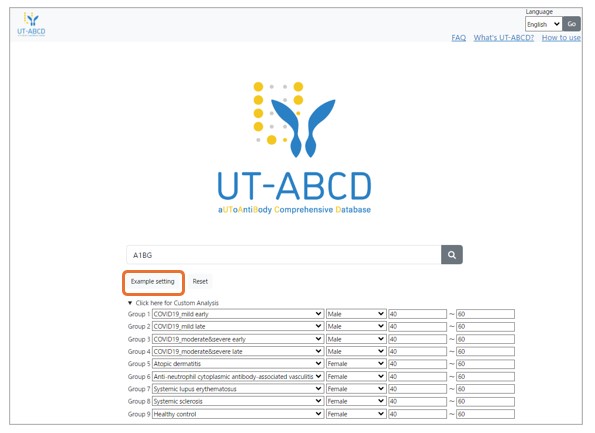
4. Option: Click the 'Example setting' button to set example inputs.
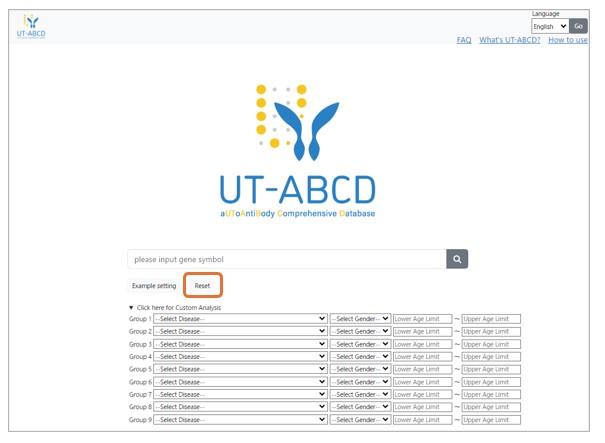
5. Click the 'Reset' button to clear the settings and return to the initial state.
1.2. Viewing Search Results
-
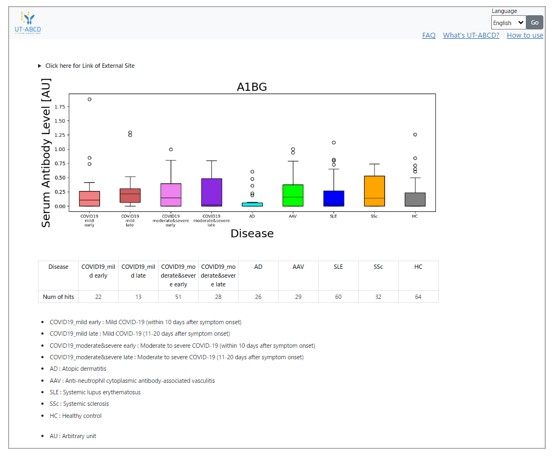
Default Search Results
-
Box plots for eight diseases and healthy controls, a table of hit counts, abbreviations of diseases, and an explanation of the vertical axis 'AU' will be displayed.
-
-
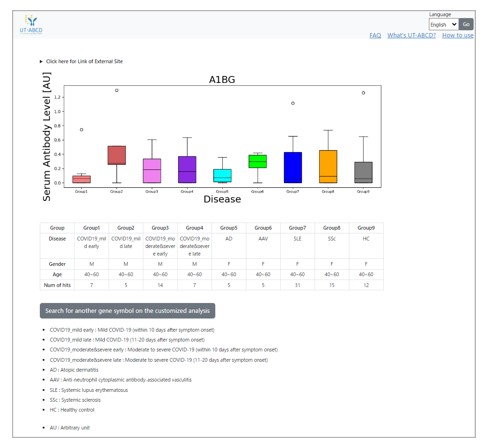
Advanced Search Results
-
Box plots for each group set with conditions, a table of conditions for each group, abbreviations of diseases, and an explanation of the vertical y-axis 'AU' will be displayed.
-
-
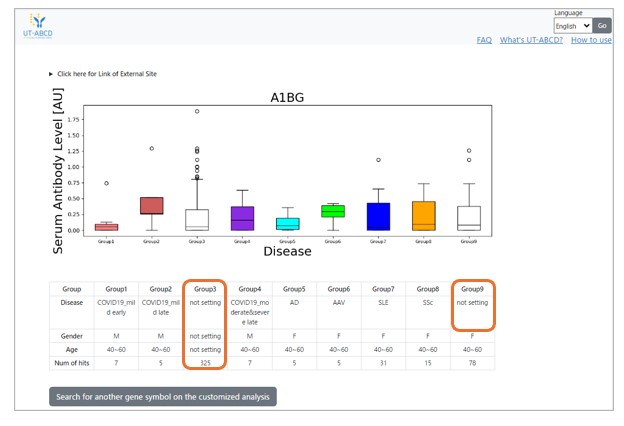
Groups that do not set conditions for disease, gender, and age will not be displayed in the box plots or condition table (e.g., Group 3 in the example).
If any of the conditions for disease, gender, and age are not set, 'not setting' will be displayed in the condition table (e.g., Disease for Group 9).
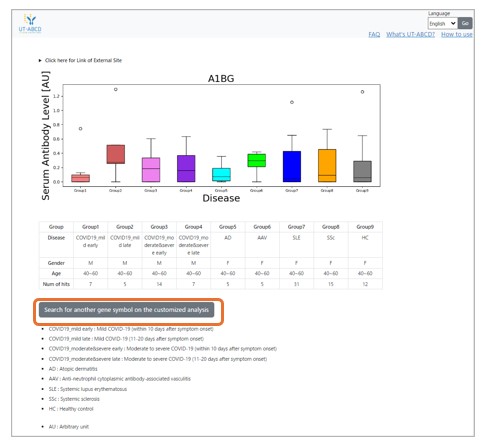
1.3. How to search for another gene symbol on the customized analysis
Click 'Search for another gene symbol on the customized analysis' on the Advanced Search Results page.
The conditions specified in the search will be displayed as set in the the customized analysis setting form on the top page.
1.4. Additional functions
-
Language Switch
Switch between Japanese and English using the Language toggle button at the top right of the screen. Click 'Go' after selecting the desired language.
-
FAQ
Click the 'FAQ' tab on the top page of the database website for guidance in a Q&A format.